
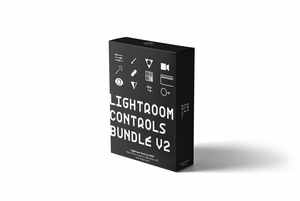
Lightroom Controls Bundle for FCPX v2 is a plugin suite combining all the tools found in Lightroom, which should make their way to FCPX.
A complete list of all included Plugins is down below.
Compatibility:
natively built for FCPX 10.6.x or later
adapted to work with 10.4.x and 10.5.x results may differ slightly
NOTE:
1) Dehaze works best in 10.6.x or later due to lacking functionality in 10.5.x and 10.4.x. See the examples below.
Important: All plugins from Lightroom Controls can also be found in other bundles. Check out the bundles below to find the best deal.
Installation:
Unzip the first folder. (Attention, when using Safari on macOS, the first folder can be already unzipped.) You will see a help-PDF file and the plugin folder inside the first folder.
inside the plugin folder, you will find your plugin folder, e.g. “Lightroom Controls [v2]”
inside this plugin folder, you will find different folders for different versions of FCPX
choose the folders that match your FCPX version (if you are not sure which version you are running, open FCPX, go to the menu bar, click on “Final Cut Pro X” and “About Final Cut Pro X”
you may find two fitting folders, one ending with “XYZ – Effects” and the other with “XYZ – Titles”
navigate to ~/users/<yourname>/movies
inside the movies folder is another folder called “Motion Templates”. If you don’t have this folder, you can easily create it. These kinds of folders are case-sensitive. Make sure your spelling is correct.
inside the folder “Motion Templates” are five additional folders. Compositions, Effects, Generators, Titles and Transitions. If you don’t have these folders, scroll down to “Troubleshooting” and follow the instructions before installing the Plugin.
paste the “XYZ – Effects”-Folder into “Effects”, and the “XYZ – Titles”-Folder into “Titles”
reopen Final Cut, and everything should be loaded correctly
Troubleshooting:
1) Recreating the folder structure in ~/users/<yourname>/movies
Make sure Final Cut is closed
within the folder “Motion Templates” are five additional folders. Before continuing, save your other Plug-Ins and Titles inside a folder outside the “Motion Templates” folder. You may create a temporary folder on your disk or your desktop.
Delete the folders Compositions, Effects, Generators, Titles and Transitions.
Now, recreate these folders. Attention: they are case sensitive. Make sure your spelling is correct. When naming these folders, you need to add the suffix “.localized”. It will disappear after the renaming process. (E.g. “Effects.localized”)
Insert your previously saved Plug-Ins into their according folders.
Relaunch Final Cut Pro X.
2) Reinstalling FCPX
If it doesn’t, you might consider re-installing Final Cut Pro X. Even though there is no guarantee for this method, it fixed the issue of non-functioning Plug-Ins in many cases.
Size:25.8 MB
home page
https://ericlenz.photography/all-products/lightroom-controls-for-final-cut-pro-x-bundle
Pterosaurae » Ericlenz – Lightroom Controls Bundle for FCPX v2
